INTERCEPTOR controls
Binds for a stealth puzzle where the phone is the loadout.
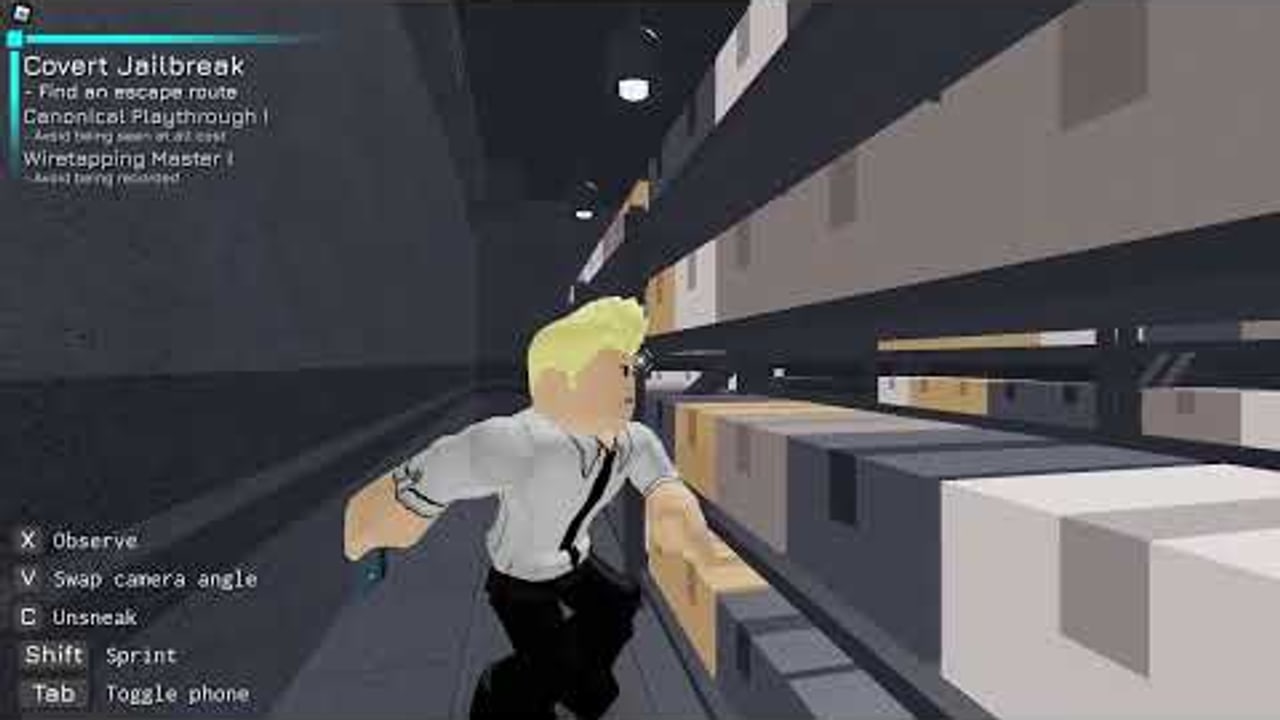
INTERCEPTOR looks like a third-person Roblox stealth game and then puts a full hacking OS over your screen. If you cannot close that OS, you cannot hide. This page is the bind sheet for the guides hub. Read it with getting started and hacking.
Movement and stealth
- Walk / look — standard Roblox move and camera. Slow down near corners; sprinting into a cone is how default runs die.
- Crouch / hide — use cover, desks, and cell geometry. A detection icon appears when an NPC or camera spotted you while hiding (added in Update 1). That icon means you are not as invisible as you think.
- Interact — laptops, doors, forklifts, donuts, intercoms. Hold only as long as the prompt asks. Mashing interact is how people reopen the phone by accident.
- Lean / peek if your current build exposes it — use it to pre-aim a camera before you commit the body.
There is no gun loop to master. If you are hunting an ADS bind, you grabbed the wrong Roblox military game.
Phone and hacking overlay
Open the phone to intercept cameras, jam devices, download files, and fire intercom tricks. The overlay is a second screen. Close it with the same toggle after you steal credentials or rotate a cam. Community comments on launch week were full of “I cannot put the phone down.” That is a close-UI problem, not a softlock in the map.
While the overlay is open:
- You are worse at noticing a guard who turned.
- Some minigames (laptop timing) still run. Back out if a cone is incoming.
- Do not open extras, seed, or settings from here. Do that on the title screen.
Hacking verbs themselves — intercept, jam, download, distract — live on the hacking page so this sheet stays binds-only.
Quality-of-life binds
Quick Restart was added by request in Update 1. Bind it. INTERCEPTOR is a retry game; walking back from a spotted checkpoint wastes the mood. The end screen also shows the current game version so you can match footage to the patch log.
RNG seed sits in the main menu for extras. F9 (developer console) shows the active seed. Use it for INTERSWEEPER experiments, not for arguing that Chapter 1 is “unbeatable.”
Mobile and console
Update 3 added mobile support. On a handheld:
- Keep the interact button away from the phone toggle or you will nest UIs.
- Use headphones; audio tells you when a guard turns in the Cell Block hallway.
- If a prompt still shows a keyboard key, that was a known bug (console players seeing Q instead of R2) and was hotfixed. Update the experience if you still see it.
Settings you should touch before a serious run
- Graphics just high enough to read camera LEDs and SC/OS screens.
- Sensitivity low enough to track a cone without whipping past a hide spot.
- High Security off until you can clear default. The mode is a separate guide: High Security.
If a control does nothing, you may be in the restricted hiatus build — status. Do not download a “fixed control script”; the scripts hub is empty for a reason.
The video in the middle of this article is a real High Security run. Watch the player’s hands: phone up, phone down, move, hide. Copy that rhythm, then apply it on the Cell Block route and the undetected badge attempt.
For loadout ranking rather than binds, switch to hacking tools. For who you are pointing the phone at, see security forces.
Frequently Asked Questions
Straight answers for stealth, hacking, and the 2026 hiatus.
How do I close the INTERCEPTOR phone?
Press the same toggle that opened the overlay. Do not spam movement or interact.
What is Quick Restart?
A settings bind from Update 1 that skips the walk of shame after a spotted run. Use it.
Does INTERCEPTOR work on mobile?
Yes, from Update 3. Keep the phone toggle separate from interact so the UI can close.
Where do I set the RNG seed?
Main menu. F9 shows the seed. It matters on extras such as INTERSWEEPER.